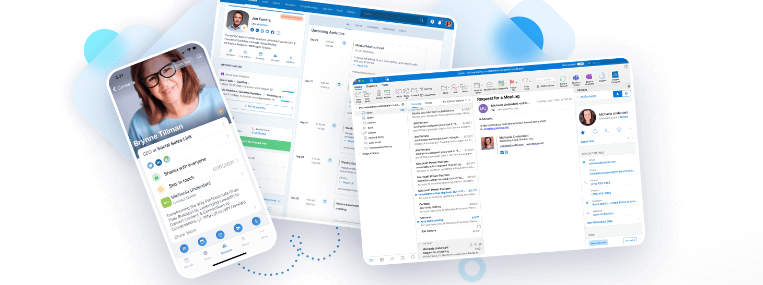
We do have one new imminent update to report. A month or two ago, Nimble added an HTML compose block to design templates. Now, they have also created a series of HTML templates for your use along with an HTML viewer. Coming soon!
The bigger picture here is, and I am not a graphics guy, I believe that you will now be able to create something, in say Canva, and then copy and paste that coding into Nimble. In other news, we are expecting some upgrades to web forms and web chat in the very near future. On to some best practices!
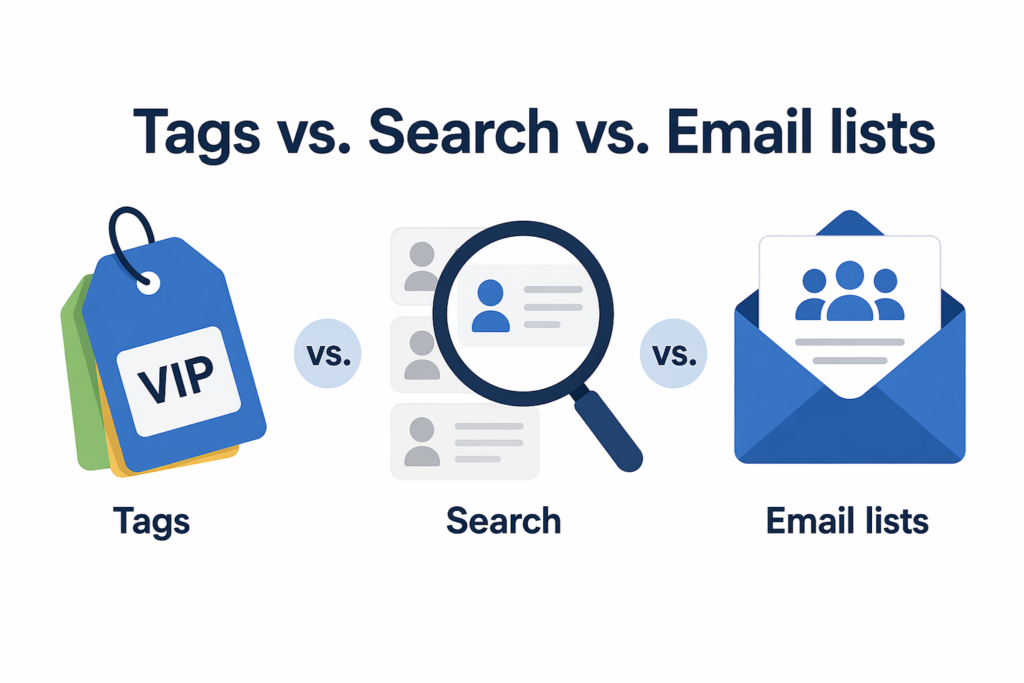
This question actually comes up quite often. Nimble has three main methods for organizing your contacts into groups. You might do this when you wish to look more closely at contacts within a group or, probably more commonly, you want to send this group a message or add them to an email sequence. Which to use? Let’s look at all three.
Tags – Tags are applied manually to contact records and you can create these on the fly. In actuality, Nimble offers three different tagging systems: contacts, activities, and deals. We will focus on contacts. Key features …
- Tags are applied manually to a record and can be done from the record itself or by checking the box next to the record on a list and then selecting the “add tag” option.
- Using this same tag option for a list, you can bulk update (add the same tag) to a group of checked records. Conversely, you can now bulk delete a tag using this same routine.
- A contact record can have, as far as I know, as many tags as you wish.
- You can select contacts who have either all of two to five tags or who have any of two to five tags.
- Tags can also be merged and given the name of either one of those tags or a new name altogether.
- Tags are shared with all team members.
- Tags are also a part of record imports and web form submissions. They can also be added via workflow automations.
Search – Segment searches are designed to allow you to find contacts who either meet, or do not meet, any contact record field or fields. This can be done using a form of Boolean searches. This is much more powerful, but a little more complex, than using tags. Some things to keep in mind …
- You can, and should, save your searches. You won’t have to reinvent the wheel every time and you can easily edit the search should you want to, for example, change one criteria only.
- Searches, by default, are locked meaning that only the creator can access them. However, there is a little padlock icon next to the name of each search and clicking on that will lock or unlock it to share it with your team.
- While tags can be a part of a search, unlike tags that are added manually, a search will also automatically include any new or edited record that meets that search criteria.
Email Lists – Email lists are a part of Nimble’s optional email marketing add-on for $15 per month. While any contact record will show if they are on one of these lists, they kind of stand alone by themselves. Key features …
- Lists will show whether or not that email address is deliverable. When first added, they will be marked as unknown. However, this label will change following a message send.
- Using enrichment credits, you can verify email addresses within any list. Your standard Nimble account will allow you to verify up to 50 email addresses per user per month (shared) and you can purchase more credits. Note that enrichment credits are also used when finding contact info.
- Email lists do offer limited reporting capabilities.
- Web form submissions can automatically be added to an email list.
Which is best for you? Like most things, it depends:) Tags are best for simple contact organizing and are very easy to use. Caution! Don’t try to tag everything! It can get messy very quickly. For more complex tasks, segment searches. You could even do a search and then bulk add a tag to the results. Lots of flexibility!
For dedicated email marketing, email lists. However, you can use tags or searches with email marketing and that does include group messages and sequences. While the email marketing add-on includes a dedicated sending account that bypasses your connected email account(s), you can send from a connected email, but avoid bulk sends (allowances vary by provider).
That will do it for today! Thank you again for placing your trust in my services!
If you would like to explore whether or not Nimble CRM, my sales training, or Sales Coach Pro might be right for you, please book a free 30-minute Zoom consultation with me by going to my calendar.
To learn more about our Nimble training and implementation services, please visit our Nimble CRM training services page.
I would also be happy to connect you to a marketing professional who I know and trust or to an automated yet personalized and human-to-human LinkedIn prospecting system. Please reach out to me at craig@adaptive-business.com for an introduction!

Craig M. Jamieson
Latest posts by Craig M. Jamieson (see all)
- AI & Nimble CRM – Practice & Preparation Tips - October 14, 2026
- Nimble CRM Tips & Updates – October 7, 2026 - October 7, 2026
- My Top 10 Sales Philosophies - September 30, 2026